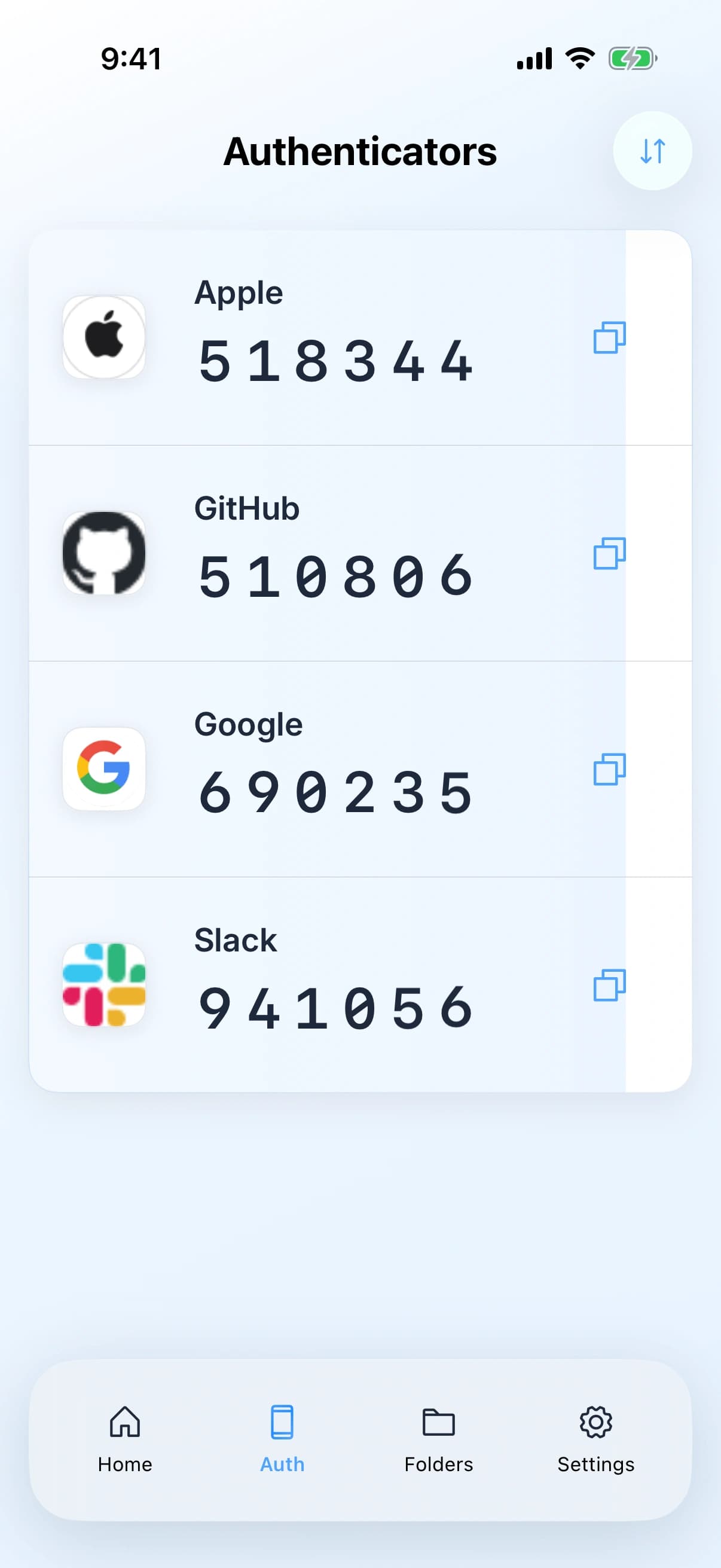
A one-time code is the six digit number that changes every thirty seconds. Most people keep them in a dedicated authenticator app, which works, and which also means every sign in involves switching apps and typing digits from memory before they expire.
Adding a code to a login
Start on the site, not in the app
Turn on two-factor authentication where you have the account. It will show you a QR code, and usually a setup key in text form underneath if you ask for it.
Add it to the entry that owns it
Open the existing login in Zen Passwords and add the one-time code to it, rather than creating a new item. Keeping the code on the login is what lets AutoFill offer both together.
Save the recovery codes somewhere
Save the service’s recovery codes somewhere protected. Keep a copy accessible without this vault when losing vault access would otherwise lock you out of the account too.
Is one vault for both a bad idea?
It is a fair question and the honest answer has two halves. Keeping the password and the second factor in the same vault means anybody who opens the vault has both, so the vault becomes the single thing to protect. Against that, the second factor exists mainly to defeat a stolen or reused password, and a vault that generates unique passwords has already dealt with that. The threat it does not cover either way is somebody who is already inside your unlocked device.
Verify the code before finishing setup
Enter a generated code on the service that issued the setup key and confirm that it is accepted. Keep the service’s recovery codes in a protected place you can reach if the vault is unavailable. A code saved in the vault is not a way to recover that same vault; prepare a vault recovery key separately.