Sync and backup solve different problems and it is worth being clear which one you have. Sync keeps your devices matching, including matching a deletion. A backup is a copy of a moment you can return to.
A backup right now
Choose where it goes
You pick the folder. On a Mac that might be a local folder or somewhere in your own cloud storage; the file is encrypted either way, so where it lands is your call rather than a security decision.
Export
The file that comes out is encrypted with your master password. Unlike the plain text export most password managers hand you when you leave, this one is not readable by anything that finds it.
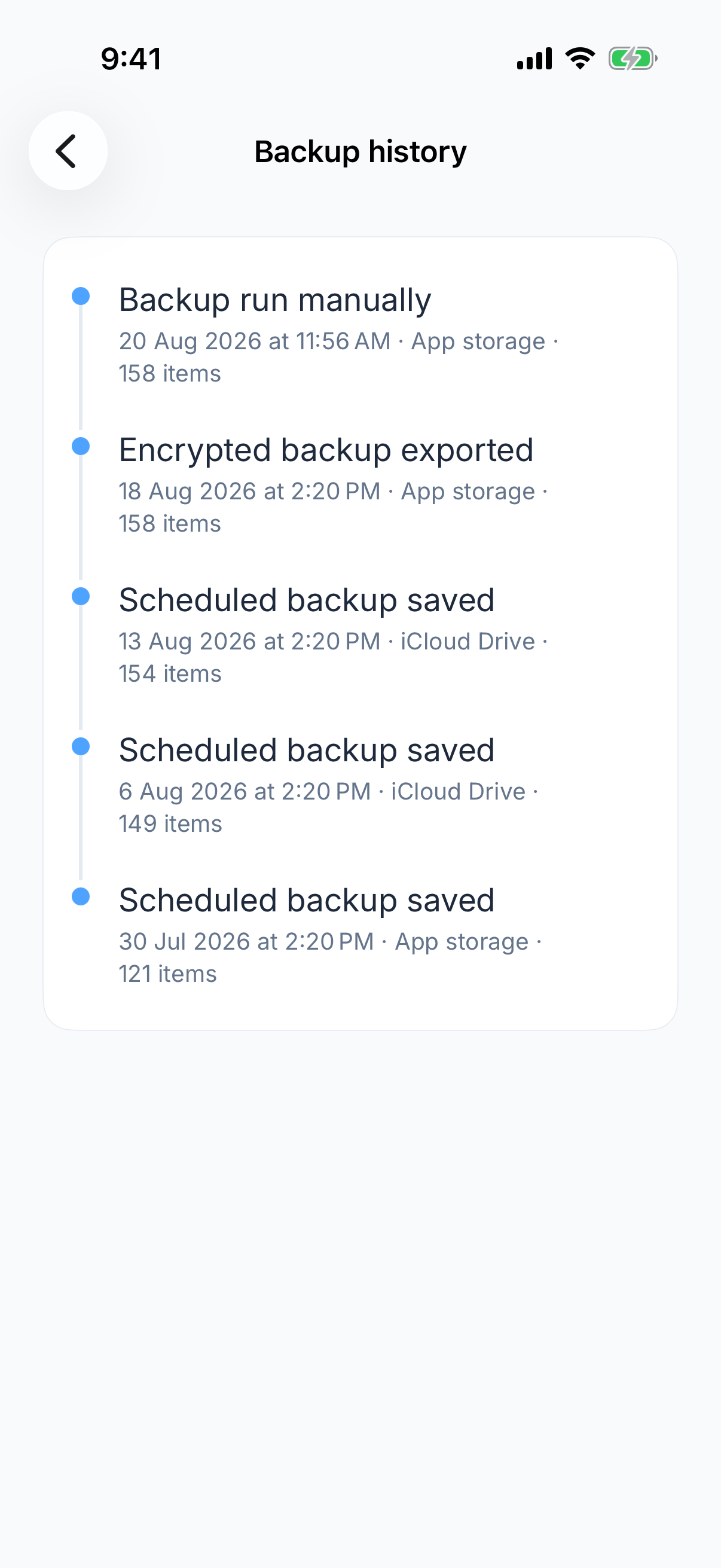
Check the history
The app lists every backup it has made and when. Worth a glance occasionally, because a scheduled backup that quietly stopped running looks exactly like one that is working.
On a schedule
You can set backups to run on a cadence into the folder you chose, which is the version most people should use. A backup you have to remember to make is a backup that is three months old on the day you need it.
Restoring
Import the backup file and unlock it with the master password it was made under. That last part matters: if you changed your master password after the backup was made, it is the old one that opens it.
Before troubleshooting sync or access
A backup preserves a copy; it does not reset its encryption. Keep the credentials and, where required by your vault, the Secret Key or Emergency Kit needed to open it. For a missing update, follow sync troubleshooting. For lost access, follow the master-password recovery guide.