“Speech to text” describes two different jobs. Dictation puts words into the app where you are typing. Transcription turns an existing recording into a document you can review. Choose for the job you have, before comparing feature lists.
For example: a two-sentence reply in Mail needs text at the cursor. A 40-minute interview needs a saved transcript, speaker review and timestamps. The second task asks more of the tool.
For occasional typing, start with Apple Dictation
Apple Dictation is included with macOS. Enable it in System Settings under Keyboard, then use the shortcut shown there, the Microphone key if available, or Edit > Start Dictation. Language availability and processing depend on your setup. Apple explains how to check whether processing happens on your device in its Mac Dictation guide.
For typing and recordings in one app, consider Zen Whisper
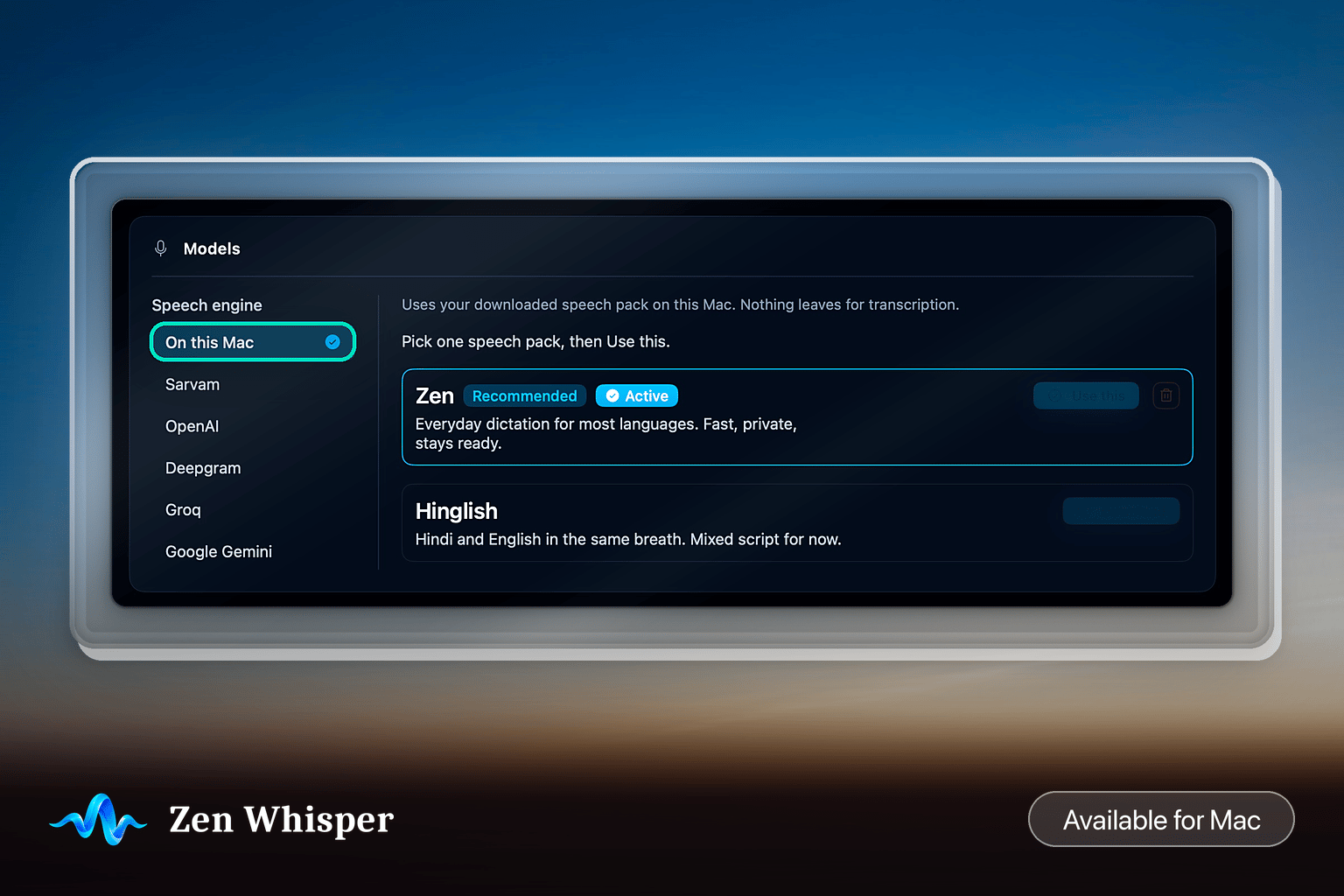
Zen Whisper combines hold-to-talk dictation with audio and video transcription on an Apple Silicon Mac. Its local speech packs must be downloaded first. It also offers searchable transcripts, speaker labels, timestamped captions, a personal dictionary and voice memos.
Scroll sideways to compare every column.
Workflow comparison reviewed 17 September 2026. Apple features depend on your Mac, language and macOS version. Zen details come from the current product documentation.
| Your task | Apple Dictation | Zen Whisper |
|---|---|---|
| Type into a text field | Included with macOS; use the configured Dictation control. | Hold a selected right-hand modifier, speak and release to insert text. |
| Transcribe a saved recording | The Dictation feature is for live text entry, not importing a recording. | Import audio or video and review a saved transcript. |
| Review a conversation | Text is entered in the destination app. | Search transcript history and review speaker labels and timestamps. |
| Choose local recognition | Check Keyboard settings for the processing information on your setup. | Select local recognition and download a speech pack; cloud engines are opt-in. |
| Mac requirements | Check Apple’s requirements for the features and languages you need. | Apple Silicon, M1 or newer, and macOS 14 or later. |
| Cost | Included with macOS. | 14-day Pro trial, then 3,000 free words a week or a paid Pro seat. |
Compare with a sample from your own work
- Dictate the same short paragraph in the language you use most. Include a name, a date and a technical term.
- Review the corrections needed, not just whether the text appeared. Try the actual app you write in.
- If you need transcription, use a short recording with permission to process it. Check names, speaker changes and timestamps against the audio.
- Check where processing happens and whether the workflow still works with the network disconnected after setup.
This is a test you can run, not a benchmark we have measured. Noise, speech, the selected pack and your Mac affect the result.
Choose for the task
Stay with Apple Dictation if live text entry meets your needs. Consider Zen Whisper if you also want recorded-media transcription, a searchable history or its dictionary and hold-to-talk workflow. To configure it, follow the Zen Whisper dictation setup guide.
Check privacy and saved recordings separately
Zen Whisper’s core recognition uses the Mac with local packs. Optional cloud engines send data to the provider you choose, using your own API key. Voice memos can retain audio for later transcription, so local processing should not be read as automatic deletion. Review the privacy policy and your saved recordings.
For a full interview workflow, read transcribe an interview without uploading it. For current downloads and purchase terms, visit Zen Whisper for Mac.