
Saving a password and enabling AutoFill are two separate steps. Zen Passwords stores credentials in a vault and can provide them to supported sign-in fields through Apple’s AutoFill system. Start with a test account before moving your important logins. Find the current version on the App Store.
Prepare one login and your recovery information
- Finish the vault setup and keep your master password and recovery information somewhere you can access independently of the app. Do not put your only recovery copy inside the vault it unlocks.
- Add one login you are authorized to use. Include the correct website address, username and password. A saved entry does not create an account on that website or change its password.
- Lock and unlock the vault to check that you understand the normal access flow before importing more accounts.
Choose Zen Passwords as an AutoFill provider
Open iPhone Settings and find AutoFill & Passwords. On recent iOS versions it is under General; the wording and location can vary. Enable password and passkey AutoFill, then select Zen Passwords from the available providers. Apple explains the current controls in its AutoFill guide.
- Open the real website or app for your test login. Check the domain before continuing.
- Tap the username or password field and open the offered password selection control. Choose the saved Zen Passwords entry and authenticate when asked.
- Confirm that the intended username is filled, then sign in. A successful sign-in verifies more than simply seeing an item in your vault.
- Repeat with another supported app or site before changing your existing password-manager setup.
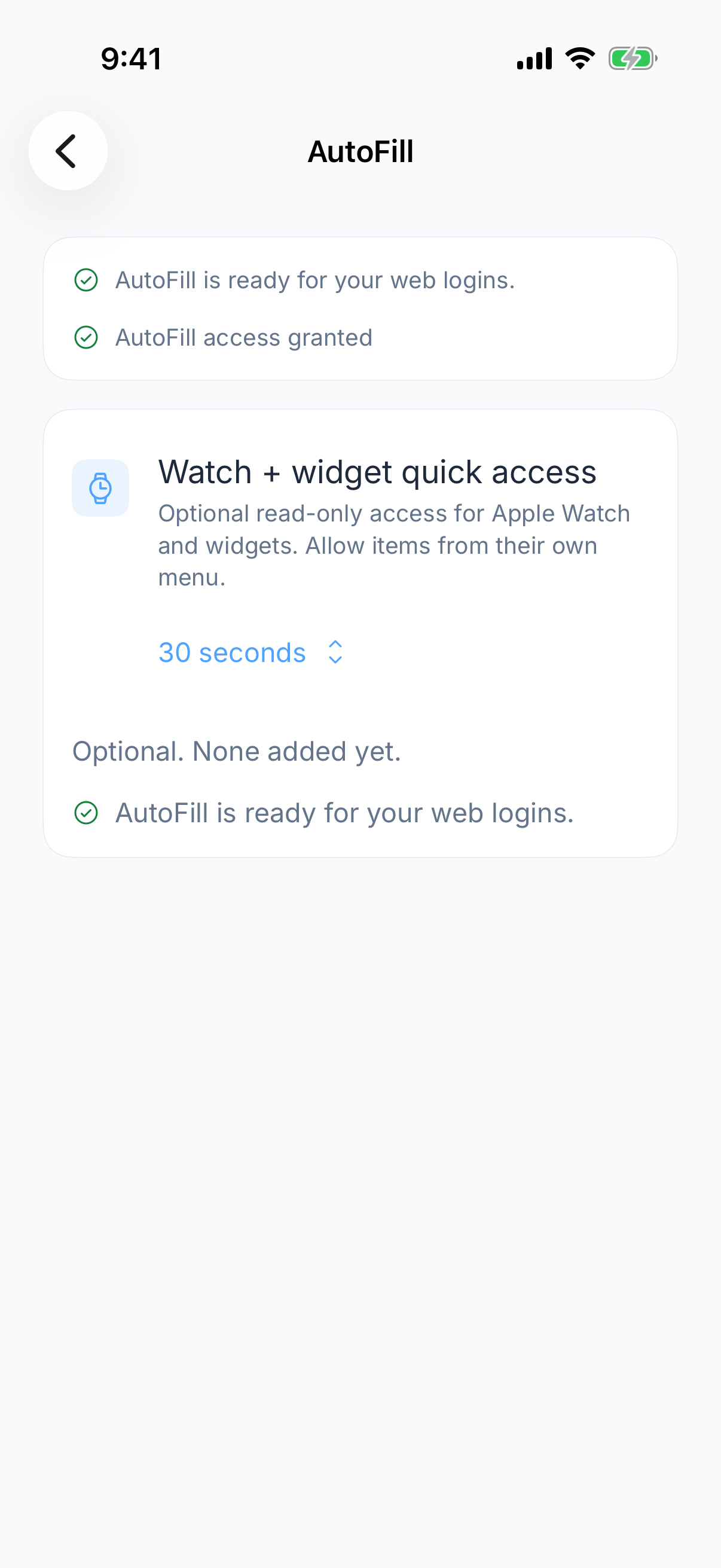
If the expected login is not offered
- Confirm Zen Passwords is enabled as an AutoFill provider in system settings.
- Open and unlock the vault, and check that the login is present and active.
- Compare the saved website address with the site you are visiting. A different domain or subdomain may affect the suggestion.
- Use the password picker to locate the intended entry if it is not suggested automatically. Do not enter a credential into an unrelated domain to force a match.
- If the problem persists, report your app and iOS versions and the affected website domain to support. Never include a password, recovery key or verification secret.
Passwords, passkeys and verification codes are different
AutoFill is one way to use saved credentials. A passkey must be registered with a service that supports it. Time-based verification codes require that service’s authenticator setup. Zen Passwords’ TOTP support does not replace every service’s push approval or SMS verification. Test each supported sign-in method separately.
Try the workflow before moving your vault
The free tier has five active items. Review the current paid options if you need a larger active vault. Personal iCloud sync is optional; local storage and syncing are separate choices. Read the privacy policy and recovery guide before relying on one device as your only copy.
If Apple Passwords already meets your needs, you may not need to switch. Compare the two products by your actual devices and tasks. If you do move from another manager, keep the old vault available until you have checked the import.
Explore the Zen Passwords product page and download from the App Store. Try the complete workflow with one entry before moving more of your data.
