


A good notes and to-do app keeps your writing and your tasks in one place, and still treats a task as a task: it has a date, an alert, a priority and a repeat, and it shows up in a list of what is due today. Zen Slate does that on iPhone, iPad and Mac, with notes and to-dos side by side, no account, and optional sync through your own iCloud. If you already live in Apple Notes, the free route is Notes for writing plus Reminders for anything with a date.
Most of what ranks for this search is App Store listings and to-do roundups that never ask the real question: what happens to a checklist inside a note when it needs a deadline? This guide answers that first, then compares six setups with prices checked on 16 November 2026.
Scroll sideways to compare every column.
Quick picks for notes and to-dos. Prices as of 16 November 2026.
| If you want | Pick | What it costs |
|---|---|---|
| Notes and dated to-dos in one private app, Apple devices | Zen Slate | Free for 5 slates; Pro $49.99 once or $19.99 a year |
| Free and already installed | Apple Notes + Reminders | Free |
| A shared workspace for a team | Notion | Free plan; Plus listed at $10 a member a month |
| A task manager on every platform | Todoist | Free plan; Pro $5 a month billed yearly |
| The most polished task manager for Apple devices | Things 3 | $9.99 iPhone, $19.99 iPad, $49.99 Mac |
| Markdown writing with simple checkboxes | Bear | Free; Pro $2.99 a month or $29.99 a year |
A checklist in a note is not a to-do
Every notes app has checkboxes. Type a list, tick items off, done. That works for a packing list or the steps of a recipe, where the list belongs to the page and nothing is due on a particular day.
It stops working the moment an item has a deadline. A checkbox halfway down a note about a house move cannot tap you on the shoulder on Thursday. It does not appear in a "today" list, it cannot repeat every month, and you only see it when you happen to open that note. Apple’s own checklist instructions for Notes cover adding items, ticking them and sorting checked items to the bottom; they say nothing about dates or alerts.
Scroll sideways to compare every column.
What each kind of item can do.
| Checklist inside a note | Real to-do | |
|---|---|---|
| Lives with the writing around it | Yes | Depends on the app |
| Due date and time | No | Yes |
| Alert before it is due | No | Yes |
| Repeats (daily, monthly) | No | Yes |
| Appears in a list of everything due today | No | Yes |
| Best for | Packing lists, steps, shopping | Anything with a deadline |
So the useful question is which app lets you keep both kinds, without copying a task out of a note and into a second app by hand.
Notes vs Reminders on iPhone: how the free setup works
Apple splits the job across two apps. Notes is for writing, with checklists. Reminders is for anything with a date: a due date and time (a date with no time alerts at 9:00 AM by default), subtasks, tags, flags, a URL field and alerts when you arrive at or leave a place.
The bridge between them is the Share button. Apple’s guide says to open the app you want to come back to, tap Share, then tap Reminders, which adds a link in the reminder back to where you left off. That gives you a dated task that opens the note. It is one task per share, though, so a note with five deadlines means five trips through the share sheet, and ticking the reminder does not tick anything in the note.
- Use Notes alone when the list has no dates: groceries, packing, ideas.
- Use Reminders for anything with a deadline or a repeat, and paste the detail into the reminder’s notes.
- Use the Share button from a note when the task needs the full note beside it.
It costs nothing and syncs through iCloud, which is why most people start here. The cost is the split itself: your plan for the week lives in one app and the reasoning behind it in another. Our comparison of Zen Slate and Apple Notes covers the rest of the differences, from locking to version history.
How Zen Slate keeps a to-do next to its note
Zen Slate is our app, built for exactly this split. A slate is a page: rich text, photos, files, voice memos, sketches and checklists. Beside the slates sits a Todos list, where each to-do can have a date, a time, a reminder, a priority, a repeat, steps of its own and a note. Both live in the same sidebar, under the same categories and tags.
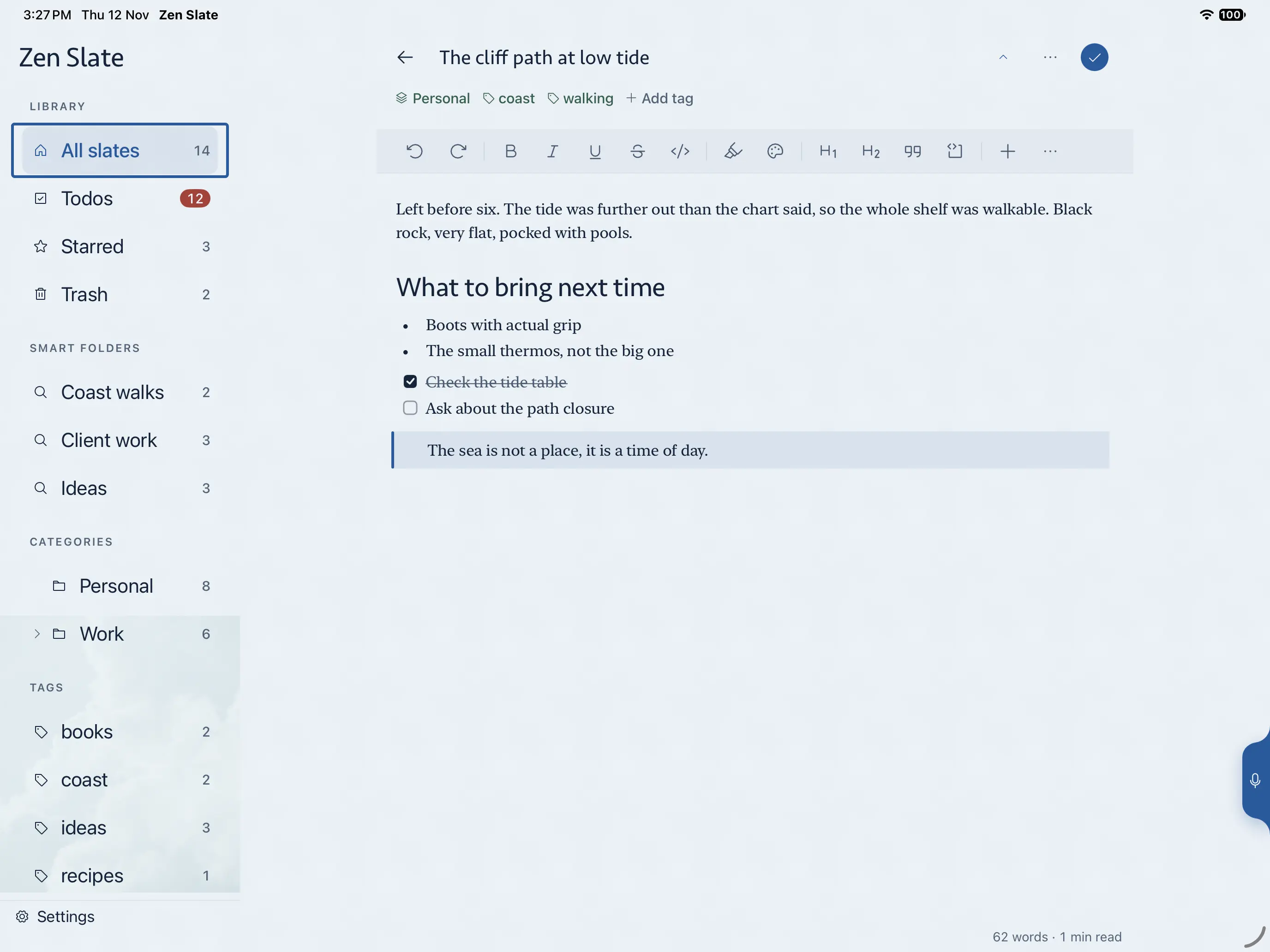
One thing to know up front: ticking a box in a slate does not create a task, and a checklist in a slate does not turn into to-dos on its own. The App Store listing says it plainly: checklists inside a note stay with that note. That is deliberate. A packing list should not flood your task list, and a real task should get a date on purpose.
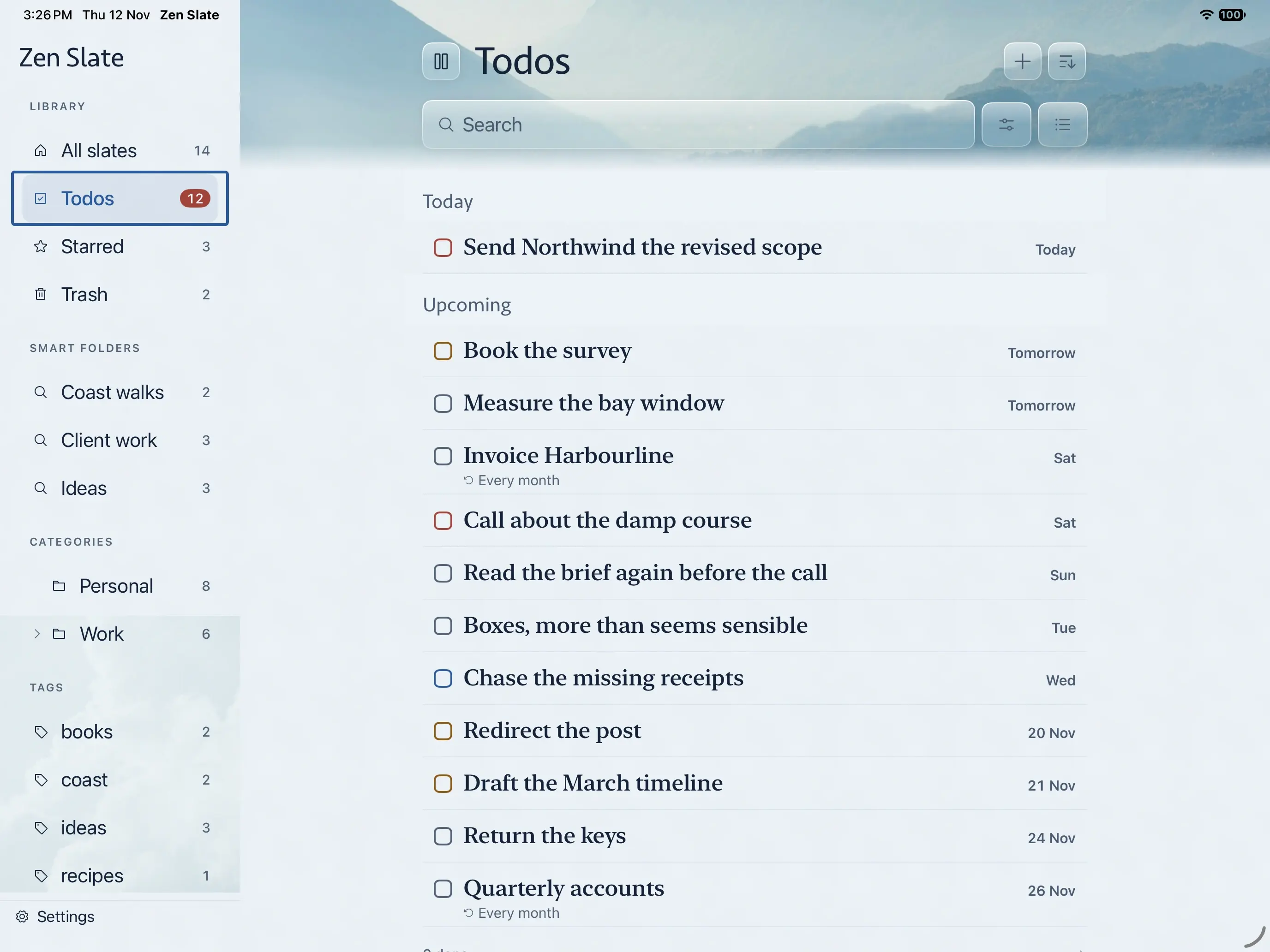
Things that make the Todos list work day to day:
- Dates, times and a reminder at a time you choose, such as an hour before.
- Low, medium or high priority, shown as a colored checkbox in the list.
- Repeats, such as every day, every 3 days or every month.
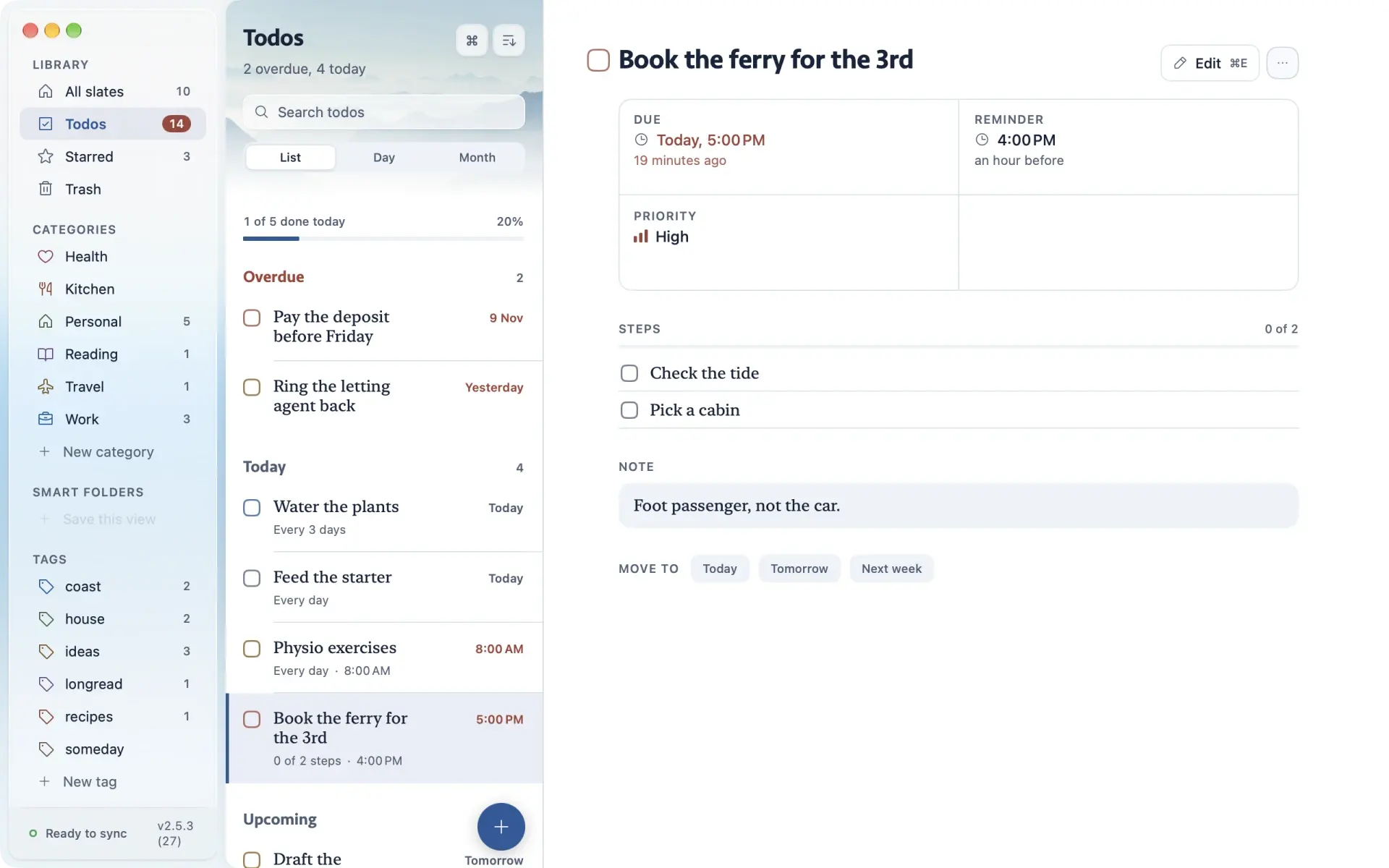
- Steps inside a to-do, so "Book the ferry" can carry "Check the tide" and "Pick a cabin".
- A Move to row with Today, Tomorrow and Next week for anything that slips.
- Arranging by date then priority, priority first, or the slate each to-do came from.
- An optional Apple Reminders integration, which stays off until you turn it on.
Voice memos are a quick way in. Record a thought into a slate, read the transcript on supported devices, then give the one actionable line a date. Our guide to turning a voice memo into an organized note walks through that flow.
On a Mac: list, day and month views
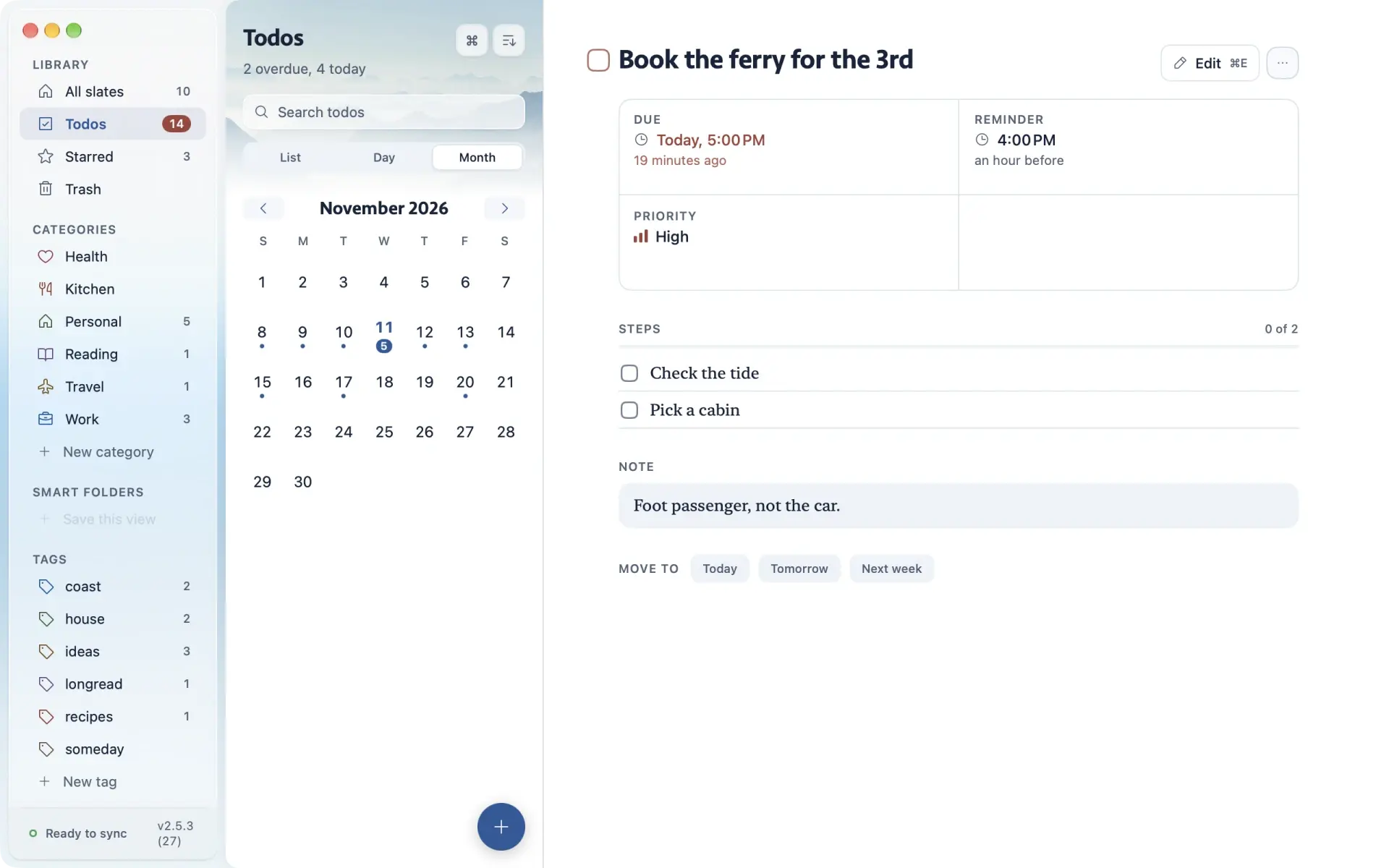
Zen Slate has run on the Mac since version 2.5.3, released on 13 November 2026, as the same App Store app as on iPhone and iPad. On a wider screen the todos get three views: a list grouped into overdue, today and upcoming, a day view, and a month calendar with a dot under every day that has something due.
With Pro, sync runs through your own iCloud account, so a to-do added on your phone at the shop is on the Mac when you sit down. There is no Zen Slate account and no server of ours in between. How Zen Slate syncs through your iCloud explains what that means for your data.
Notes and to-do apps compared
Here is how six common setups handle the two halves of the job. Prices are US App Store or developer prices as of 16 November 2026.
Scroll sideways to compare every column.
Notes, to-dos, platforms and price. Checked 16 November 2026.
| Notes | Dated to-dos | Repeats | Account | Platforms | Price | |
|---|---|---|---|---|---|---|
| Zen Slate | Rich text, voice, sketches | Yes, with reminders | Yes | None | iPhone, iPad, Mac | $49.99 once or $19.99 a year |
| Apple Notes + Reminders | Notes app | In Reminders | In Reminders | Apple Account for sync | Apple devices, iCloud.com | Free |
| Notion | Pages and databases | @remind, date fields | Reminders: on roadmap | Notion account | Every major platform, web | Free; Plus $10 a member a month |
| Todoist | Task descriptions | Yes | Yes | Todoist account | Apple, Windows, Android, Linux | Free; Pro $5 a month yearly |
| Things 3 | Markdown notes on tasks | Yes | Yes | Email, for sync | iPhone, iPad, Mac, Watch, Vision | $9.99 + $19.99 + $49.99 |
| Bear | Markdown notes | Checkboxes only | No | None | iPhone, iPad, Mac | Free; Pro $29.99 a year |
- Notion: a page can carry an inline @remind and a database item a date with an alert, per Notion’s reminders help; its own help page lists recurring reminders as on the roadmap. Offline use works, but each page has to be marked Available offline on each device.
- Todoist: the free Beginner plan includes task reminders and 5 personal projects; custom reminders need Pro, per its pricing page.
- Things 3: Things Cloud sync is free with the app but needs its own account made with an email address, and does not use iCloud. The three apps are sold separately, $79.97 for all of them.
- Bear: tasks are checkboxes in notes, with an @todo search that finds notes holding open tasks. In June 2024 the Bear team said it has no plans to add reminders. iCloud sync is a Bear Pro feature.
Sources: Notion reminders, Notion offline, Todoist pricing, Things Cloud, Bear Pro, Bear on reminders. Zen Slate and Bear are compared in more depth in Zen Slate vs Bear.
When a dedicated to-do app is the better choice
Zen Slate is a notes app with real to-dos. It is the right fit when your tasks grow out of your writing: client notes, a renovation, a trip, a household. Some people need more of a task manager than that, and should pick one:
- You run large projects with areas, deadlines and dozens of open tasks: Things 3 on Apple devices, or Todoist anywhere.
- You assign tasks to other people or share a project board: Notion and Todoist are built for teams.
- You need Windows, Android or the web: Notion or Todoist. Zen Slate is iPhone, iPad and Mac only.
- You want everything free and never more than a quick checklist: Apple Notes, with Reminders for dates.
A simple daily setup for notes and to-dos
This works in any app that keeps both kinds of item, and takes a few minutes a day in Zen Slate:
- Capture everything as a slate first: meeting notes, a voice memo, a list of ideas. Do not decide what is a task yet.
- Once a day, read the day’s slates and pull out only the items that have a deadline. Make each one a to-do with a date.
- Leave the rest as checklists inside their slates. They are reference, and they do not need to nag you.
- Give recurring chores a repeat once (bills monthly, plants every 3 days) so you never type them again.
- Each morning, open Todos, deal with anything overdue using Today, Tomorrow or Next week, and work from the list.
- Use categories for the big divisions (Work, Personal) and tags for anything that cuts across them, so the slate behind a task is easy to find.
Privacy: no account, and your notes stay on your devices
Task lists say a lot about a life: appointments, bills, health errands, clients. In Zen Slate there is nothing to sign up for. Slates and to-dos are stored on your device, Pro sync runs through your personal iCloud account, and any slate can be locked behind Face ID, or Touch ID on a Mac.
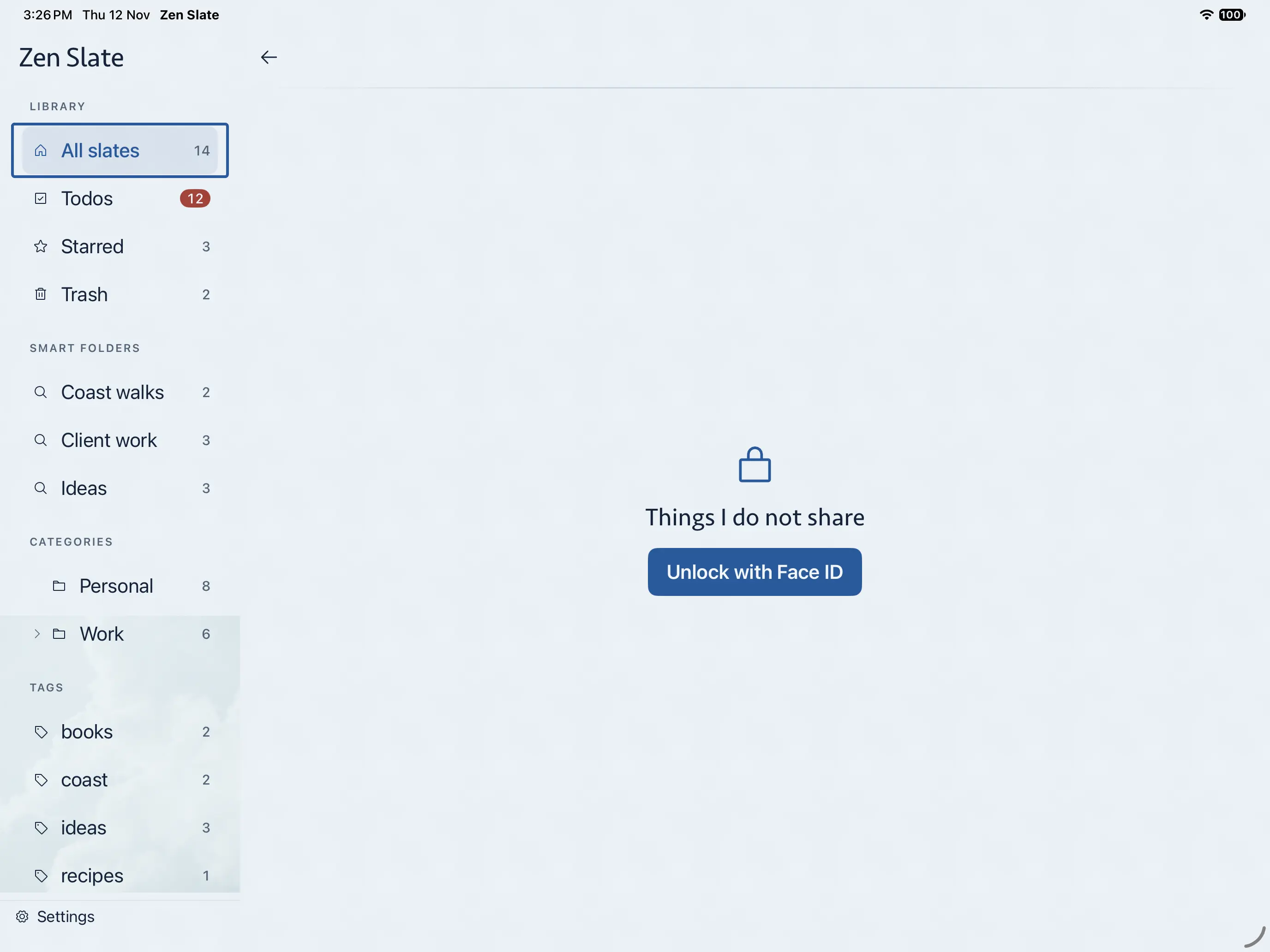
Version history keeps earlier versions of a slate for 30 days on the device, readable and restorable, and it is never synced. If you rewrite a plan and regret it, the old one is still there. For a wider look at notes apps you can buy once, see our best notes apps without a subscription.
